

Quality control is crucial for language localization. Translators and reviewers often use Quality Assurance (QA) tools to enhance translation quality.
Popular QA tools in the industry (e.g., ApSIC Xbench, ErrorSpy, Verifika, and QA Distiller) offer basic QA checks to detect spelling errors, untranslated segments, numeric mismatches, inconsistencies in source or target, and term mismatches in documents.
However, these basic features are not enough to meet the ever-changing translation requirements. For example, when a company requires its slogan to remain untranslated, repeated verbal reminders may be inefficient and ineffective.
This problem can be easily resolved by customizing QA settings to define the slogan as a non-translatable string.
What is Xbench?
Xbench is a compact and user-friendly QA tool. In addition to the basic features mentioned above, it allows you to customize QA settings by defining checklists.
You can add special rules (e.g., prohibited terms or expressions, confusing words, and language-specific punctuation or spacing rules), client feedback, and style preferences to a checklist to reduce the false positive rate and improve QA efficiency.
You can download Xbench here.
How to customize the Xbench QA settings?
There are roughly 4 simple steps (and a few additional substeps) to customize your Xbench QA setup:
- Access the checklist manager
- Create a checklist.
- Run the checklist.
- Review the Xbench report.
Step 1: Access the Checklist Manager
There are two simple ways to reach the Checklist Manager, either through the appropriate drop-down menu (1) or the Checklist Manager icon (2). You can see both cases in the images below.
-
- Click View and select Checklist Manager.
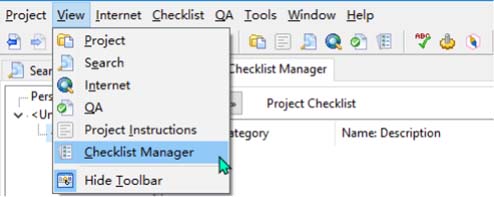
- Click the Open the Checklist Manager icon.

💬
In Xbench, there are two types of checklists: project checklists & personal checklists.
Project checklists are specific to projects, whereas personal checklists are usually general ones and can be linked to any project as needed. You can create either type of checklist using the same method. For our purposes, we will rely on personal checklists as an example.
Step 2: Create a checklist
- Right-click Unnamed Project and select New.
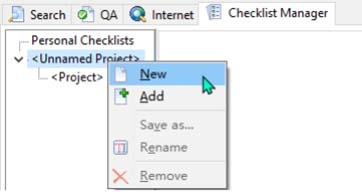
2. In the New Checklist dialog box, specify a name for the checklist and click OK.

- In the Save As dialog box, select a storage directory. Then, a new empty checklist is ready.
- You can add custom items to the checklist as needed. Right-click in the blank area on the right and select New. In the New Checklist Item dialog box, set parameters.
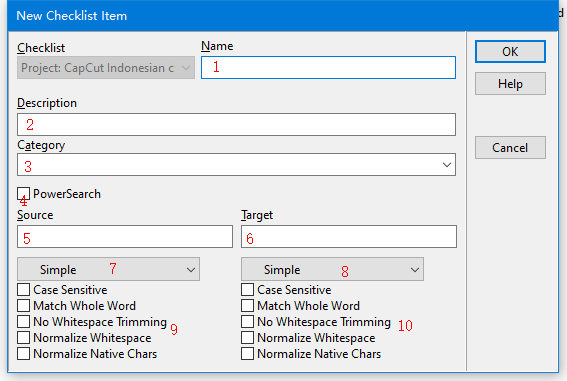
As you can see in the image above, the dialogue box includes several useful parameters we can modify to fit our needs. Let’s briefly address each parameter:
- Name: The name of the item. You can specify a number as the name to facilitate item organization and management.
- Description: The specific translation instruction or requirement that translators need to know to understand the reason for an error or how to make corrections when encountering the error.
- Category: The category of the item, such as spelling, variable, or term.
- PowerSearch: It is recommended to enable this mode to use complex search criteria.
- Source: The characters to match in the source text. To match text without specific characters, add a hyphen (-) before the characters. To match specific characters as a whole, enclose them in straight double quotes (“”).
- Target: The characters to match in the target text. To match text without specific characters, add a hyphen (-) before the characters. To match specific characters as a whole, enclose them in straight double quotes (“”).
- Search mode for the source text
- Search mode for the target text
- Additional match rules for the source text
- Additional match rules for the target text
Step 3: Run the checklist
Now that we’ve created an appropriate checklist, we can run it to check a translated file.
1. Go to Project > New and load the translated file.

- Add the target checklist to the Checklist Manager.

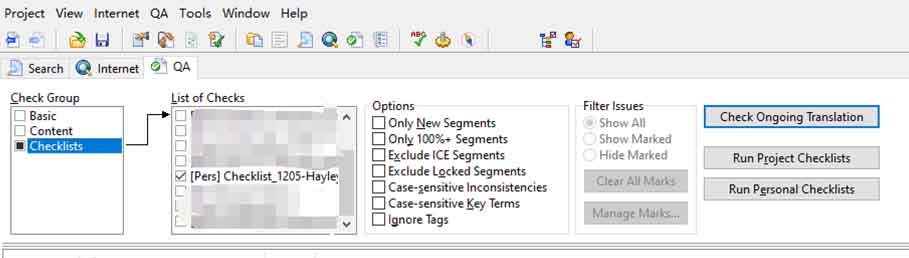
3. On the Xbench QA tab, select Checklists in the Check Group section, select the target checklist in the List of Checks section, and then click Check Ongoing Translation.
Step 4: Review the report
Finally, after customizing your QA settings and running the analysis, you’ll receive a detailed Xbench report of your translation.
Review it carefully and you may need to go back and refine your setup a bit more, double-checking that all your requirements are indeed met for consistent, high-quality translations.

Frequently Asked Questions
Xbench is used for quality assurance (QA) in translation projects. It helps identify errors and inconsistencies such as mismatched terminology, formatting issues, and incorrect numbers.
No, Xbench 3.0 is not free. It has a yearly subscription fee of $105.75 or €99. But, Xbench 2.9 is free of charge and you can download it here..
No, Xbench is not a CAT (Computer-Assisted Translation) tool. CAT tools help with the actual translation process, while Xbench focuses on checking the quality of a finished translation.
An Xbench report is a detailed list of potential errors and inconsistencies found in a translated file. Translators and editors use this report to refine the translation and ensure top-notch quality.
You can see what a report looks like here.